Send
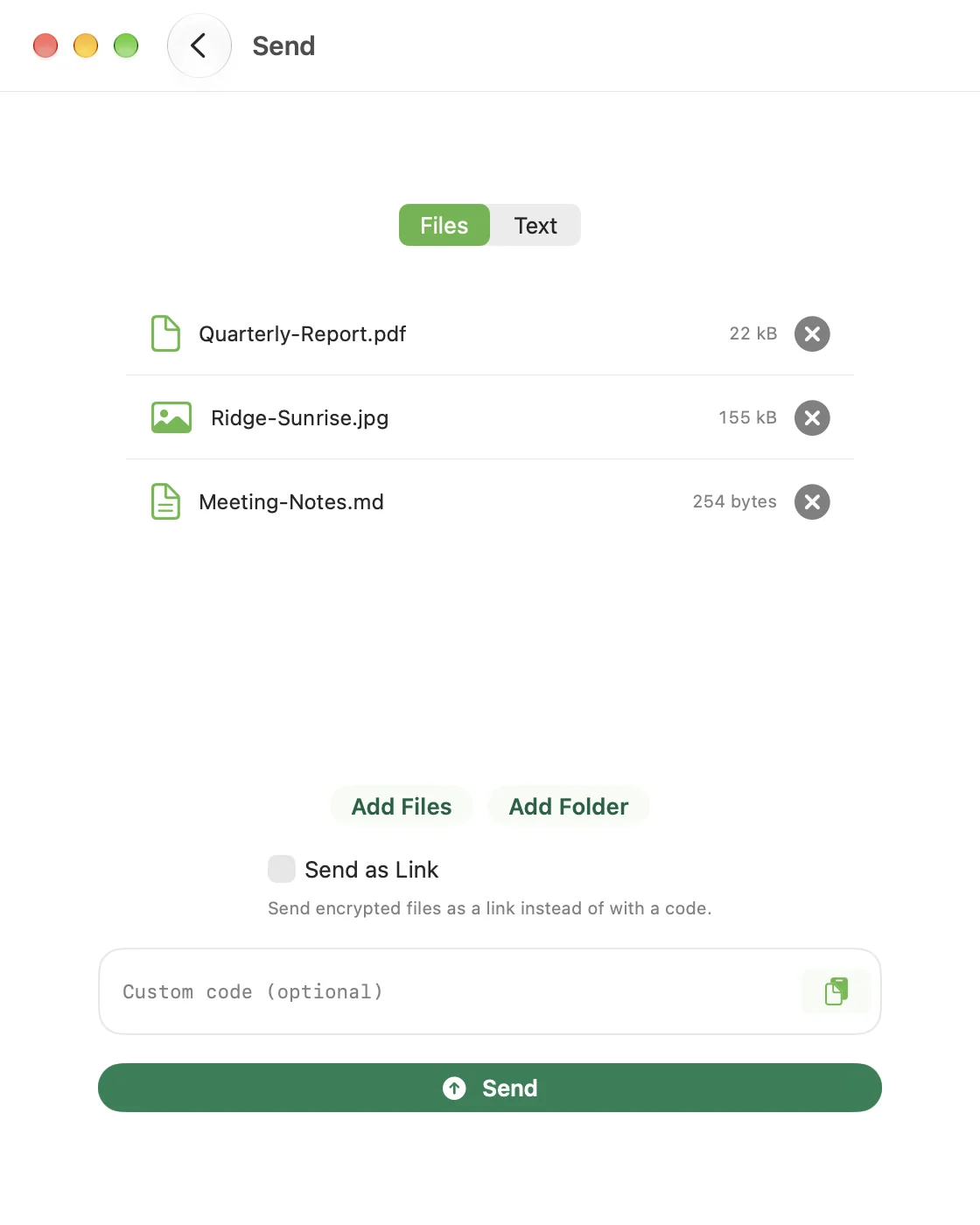
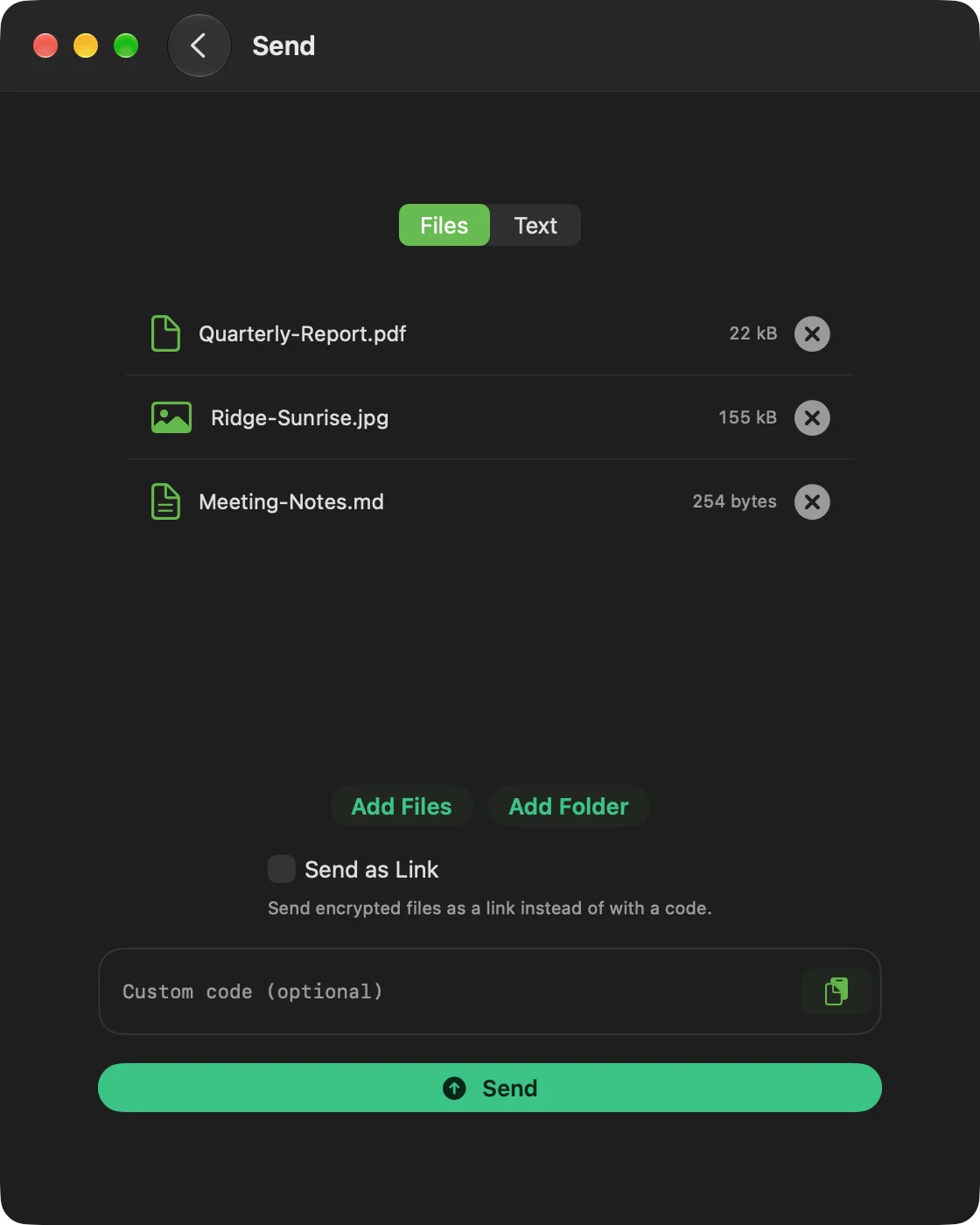
Tap or click Send on the home screen. The What to Send picker switches between Files and Text.
Files
- Add Files opens a picker. Select as many files as you like.
- Add Folder picks a whole folder.
- Remove an item from the list with its x button.
On a Mac you can also drag files or folders onto the window at any point: a Drop to Send overlay appears. Dropping on the Dock icon, or choosing CrocApp in Finder's Open With, starts a send the same way. If a transfer is already running, the files wait, and a count appears on the Send button.
Text
Type or paste into the text box, or tap Paste to insert the clipboard. CrocApp never reads the clipboard unless you ask.
Custom code
Leave the code field empty for a generated code phrase. To choose your own, type it into the field marked Custom code (optional). It needs at least 6 characters. See Code phrases and links before you do.
Start the send
Tap Send. The screen shows Ready to send with:
- the code phrase and Copy Code
- a QR code
- Share Link, which shares a
crocapp.dev/r/link that opens the app on the other device, or a page that explains the options if it is not installed (see Code phrases and links) - a trust badge naming the route you configured (see The trust badge)
The screen reads Waiting for the other device… until the other device connects. A note appears when a custom relay or Local Network Only is on, because receiving in a browser needs the default relays.
If Confirm on Both Sides is on, a prompt reading The other device is connected appears when it connects, and nothing moves until you tap Send. Once the transfer runs, CrocApp shows per-file and overall progress, speed and Cancel.
Start the sender before the receiver. A receiver that joins first can fail with a generic error. See Troubleshooting.
One transfer at a time
You cannot start a second send or receive while one is running. Finish or cancel the current one first.
Other ways to send
- Share sheet (iOS). Share files into CrocApp from any app. A Shared Files sheet lists what arrived, with Discard and Send.
- Mac menu bar. Send without opening the main window. See Mac menu bar and keyboard shortcuts.
- Shortcuts and Siri. See Shortcuts and Siri.
- Send as Link. Send files to a link server so the other device can receive later. See Send as link.