Send as link
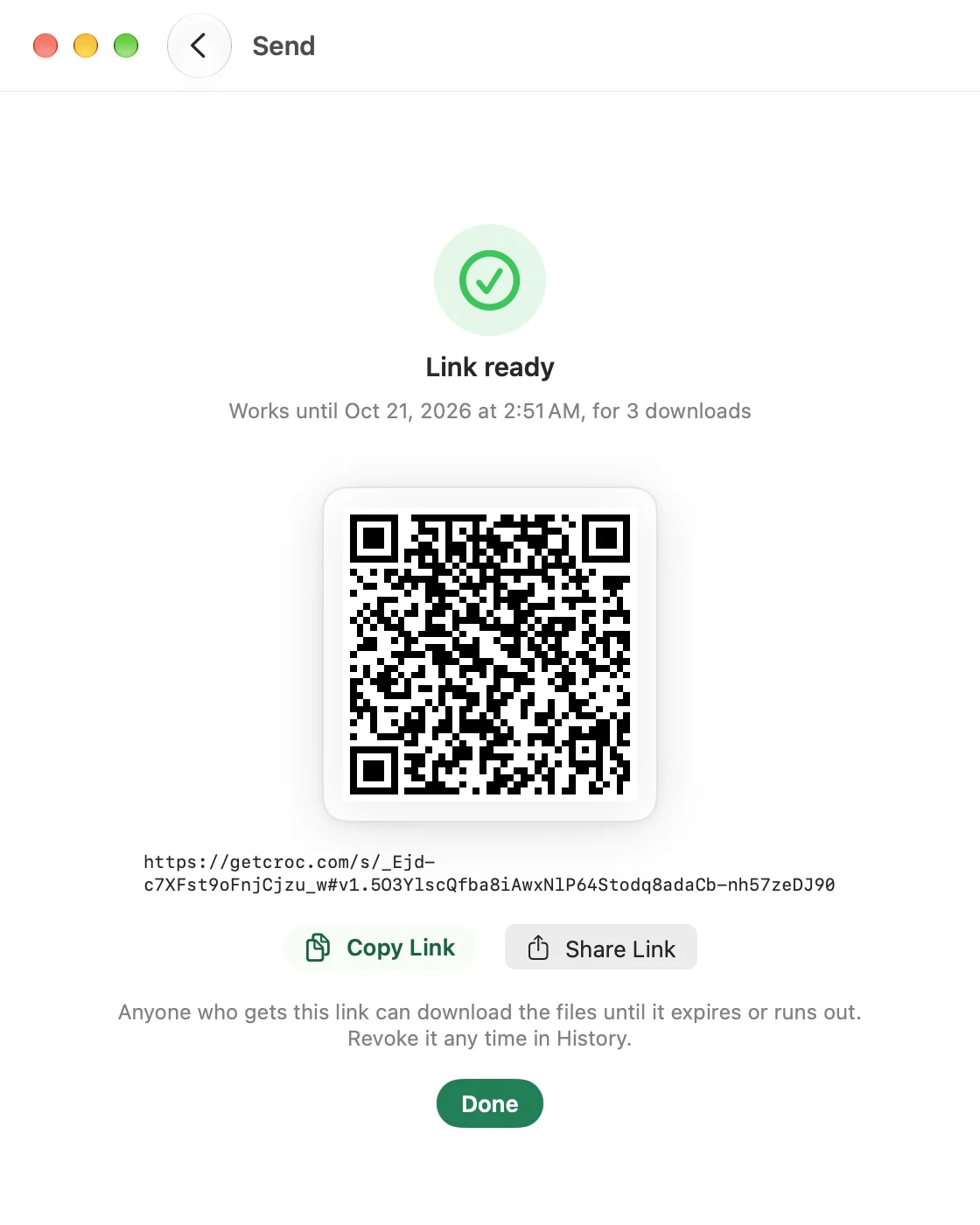
Send as Link sends your files, encrypted on your device, to a link server and gives you a link. The other device opens the link and receives the files whenever it likes, until the link expires or runs out of downloads. You do not need to stay online, and the two devices never connect to each other.
croc's command line has the same feature, so the two work together.
Link or code
| Question | Code phrase | Send as link |
|---|---|---|
| Both devices online at the same time? | Yes | No |
| How many devices can receive? | One | As many downloads as you allow |
| Folders and text? | Yes | No, files only |
| Where do the files rest? | Nowhere: they travel through a relay or directly | On the link server until the link ends |
| How do I end it early? | Cancel while it runs | Revoke before it expires |
Use a code when both people are available now, or for folders and text. Use a link when the other device is not around, or when several people need the same files.
Send
- Open Send and add files.
- Turn on Send as Link.
- Choose Link Lasts: 1 hour, 1 day (the default) or 7 days.
- Set Downloads allowed, from 1 (the default) to 100.
- Tap Send as Link.
A line under the options names the link server. While it runs, the screen reads Sending with progress. A link send uses no relay, so it shows no relay badge.
The Send as Link switch is disabled, with a line saying why, when text is selected or a folder is staged. Switch to Files, remove the folders, or send them with a code. The custom code field is hidden while the switch is on, since there is no code.
These Settings do not apply to a link send: relay, Connection and Local Network Only. The proxies under Advanced do apply.
The result screen
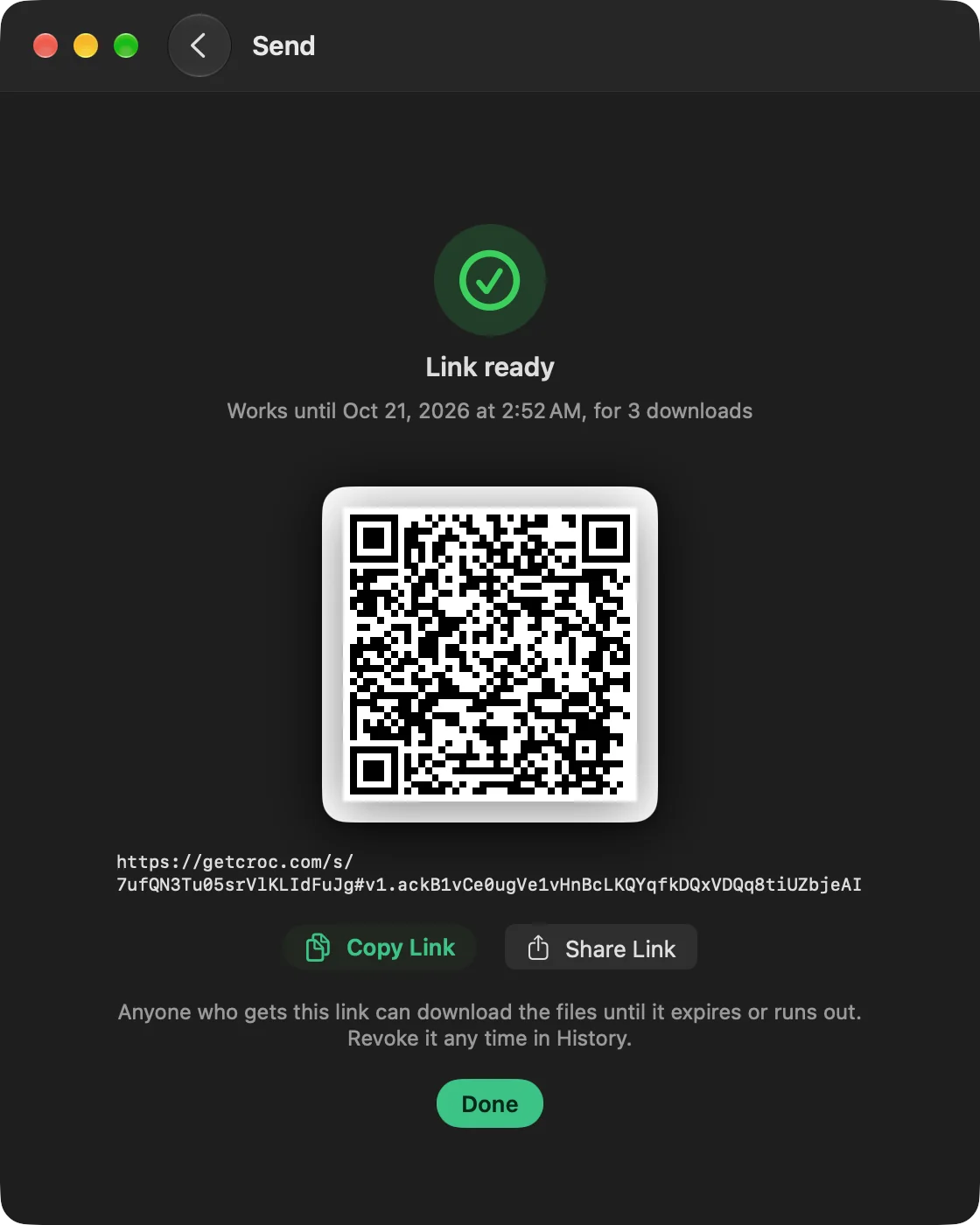
When the send finishes, CrocApp shows Link ready, when the link stops working, and the download count, with:
- a QR code of the link
- the link itself
- Copy Link
- Share Link, which opens the share sheet
CrocApp does not show the link again after you tap Done, and History never stores it. Copy or share it first. If you lose it, revoke the link from History and send again.
On iOS, Copy Link keeps the link off Universal Clipboard, because the link contains the key. macOS offers no such option.
Anyone who has the whole link can open the files until it ends. Send it over a channel you would trust with the files.
Receive
In Receive, paste the link, or on iOS tap Scan QR Code and scan the QR code from the result screen. A Receive from Link row shows the link server's host name with a Clear button. Nothing is fetched until you tap Receive.
CrocApp then fetches the file list for you to review. Choose Accept, or Keep Both or Replace if a name is taken, as in Receive. Auto-accept never applies to a link.
A link that has expired, been revoked or run out of downloads says so: "This link has expired, was revoked, or has no downloads left."
The phone's Camera app does not open CrocApp for these links, because they point at the link server. A camera scan opens the link server's page in the browser. Use Scan QR Code inside CrocApp, or paste the link.
In a browser
Opening the link in a browser shows the link server's own page. For the default server, that is a getcroc.com page run by croc's author, not by CrocApp. The key is in the part of the link after the #, which browsers do not send to a server, so the page decrypts in your browser. This depends on the page the link server serves. See Receiving in a browser.
History and revoking
A link send appears in History with the link server's host name and one of Link expires, Link expired or Link revoked, each with a time.
To end a live link early, choose Revoke Link. On a Mac, use the row's context menu. On iOS, touch and hold the row, or swipe it left and tap Revoke. A confirmation reads "Revoke this link?" and says the files are deleted from the link server and the link stops working for everyone.
Revoke Link appears only while the link is live and this device still holds the receipt for the send. Deleting a History row, or clearing History, removes the place you revoke from, so revoke first if you want the link ended.
The link server
The Link Server field is under Send as link in Settings. The default is https://getcroc.com, run by croc's author, not by CrocApp.
The link server decides how long it keeps files and which limits it enforces. For a received link, the server in the link is used, whatever your setting says.
Limits
CrocApp refuses, before sending, more than 100 files, more than 1 GiB in total, or more than 100 downloads. Those are croc's defaults. A link server with lower limits, or one that rate-limits sends, can still refuse. CrocApp then says which limit it hit: size, file count, downloads or too many recent sends.
Privacy
Files are encrypted on your device before they reach the link server, and the key travels in the link's # fragment, which browsers never send to a server. A link send contacts only the link server in Settings.
The link server sees the size of the encrypted data, the lifetime and download count you chose, and the usual details of any web request, such as your IP address and the time. Whether it can read file names has not been verified, so do not rely on names being hidden.
On your device, History keeps only the server's host and the transfer id, never the link or the revoke token. The receipt, which holds both, lives only in the Keychain. CrocApp removes it when you revoke and at the first launch after the link expires.
For everything CrocApp can contact, see Security and privacy.
If iOS interrupts a send
A link send keeps going when you leave the app, but iOS may stop it. CrocApp then says iOS stopped it in the background. A link send cannot resume, so trying again starts over and makes a new link. If iOS stops a receive from a link, open the link again. Keep the app in the foreground for a large send if you can.