Receive
Tap or click Receive on the home screen.
Enter the code
Type the code phrase into the Code phrase field, tap Paste, or on iOS tap Scan QR Code. Receive stays disabled until the code is at least 6 characters.
You can also paste or open a link. CrocApp fills in the code and waits. Nothing connects until you tap Receive. See Code phrases and links for the forms it accepts.
A link from Send as link replaces the code field with a Receive from Link row that names the link server.
If the code is right but nothing connects, ask the sender to start first, and see Troubleshooting.
Choose where files land
The current destination folder shows below the code field. Change… picks another folder, and Reset returns to the default:
- Mac:
Downloads/CrocApp - iOS: the app's Documents folder, which shows in the Files app
On a Mac you can also change it in Settings under Save Received Files To.
Accept or decline
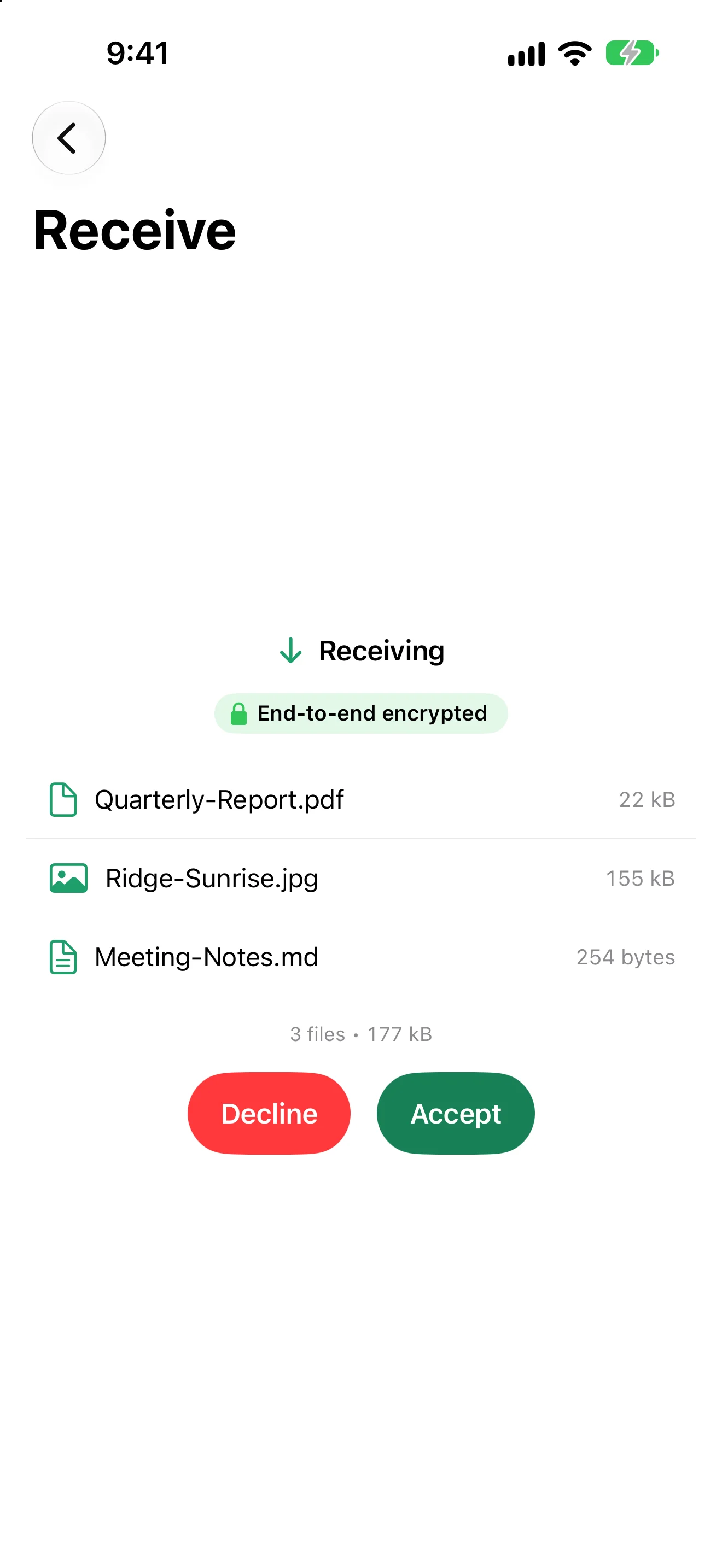
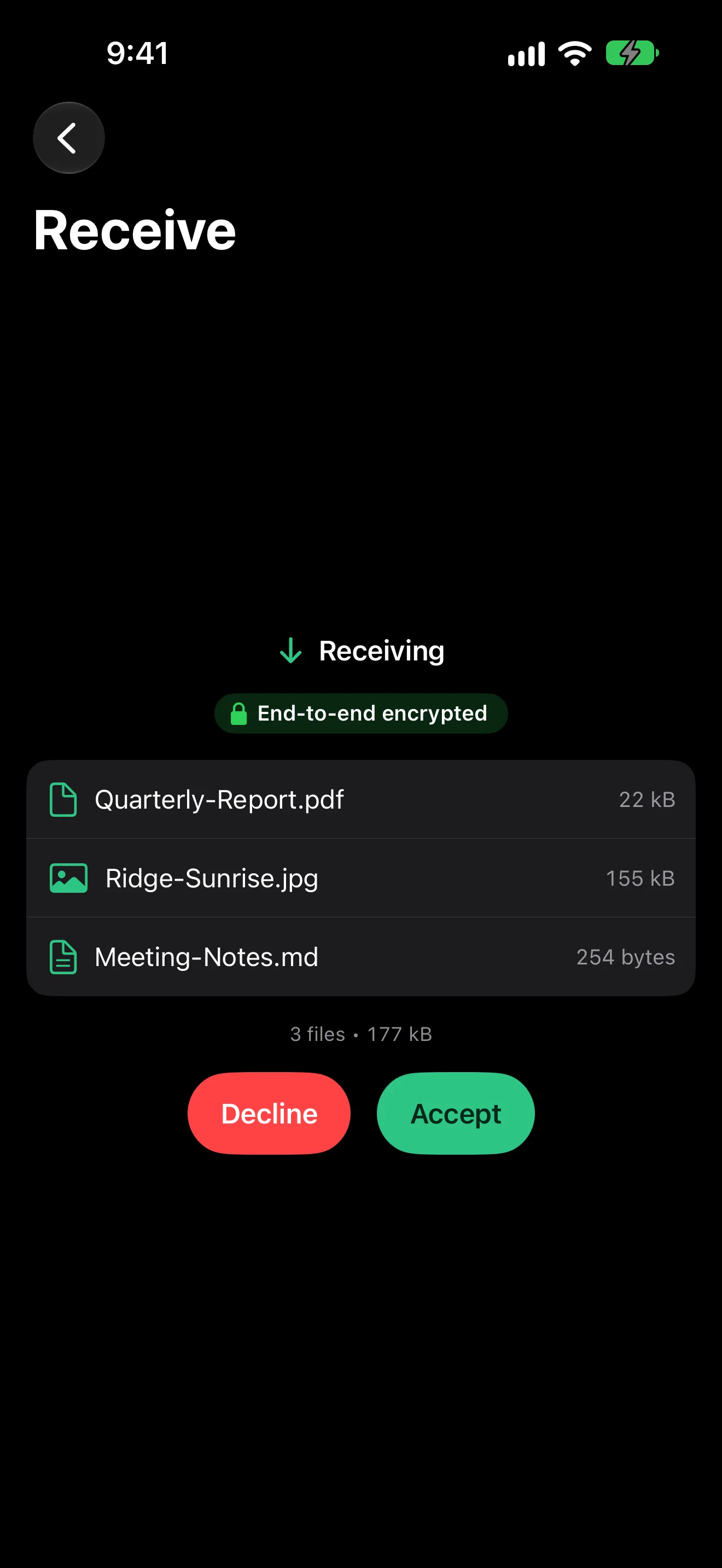
After you tap Receive and connect, CrocApp lists the files with sizes and a total. Tap Accept to start, or Decline to refuse. Decline is the only way out at this point. If the sender turned on Confirm on Both Sides, they confirm too.
If you know the sender's address, you can connect straight to it with Sender IP in Settings.
When a transfer is waiting for your answer and you are on another screen, the home screen shows Files are waiting for your answer with Review.
Name conflicts
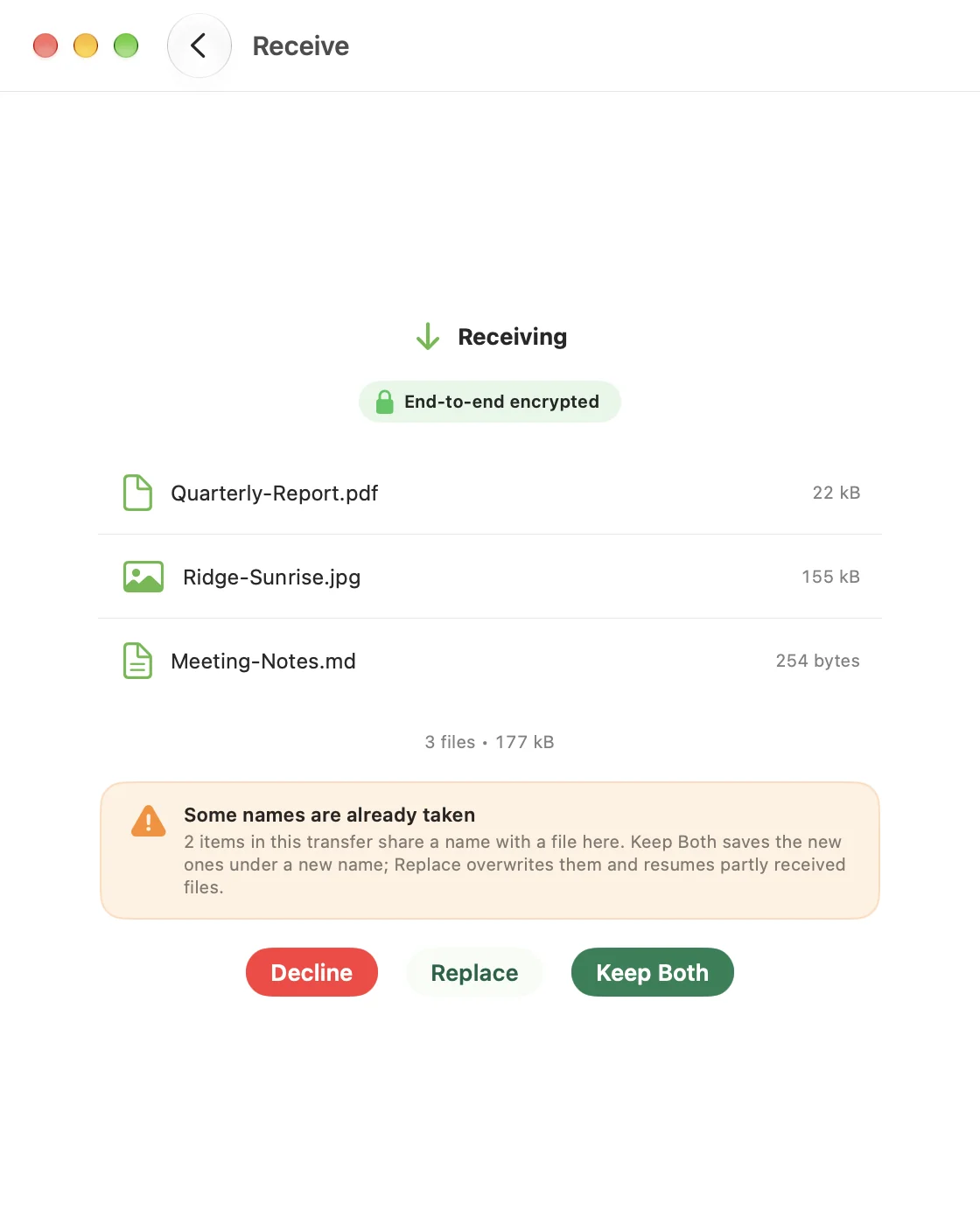
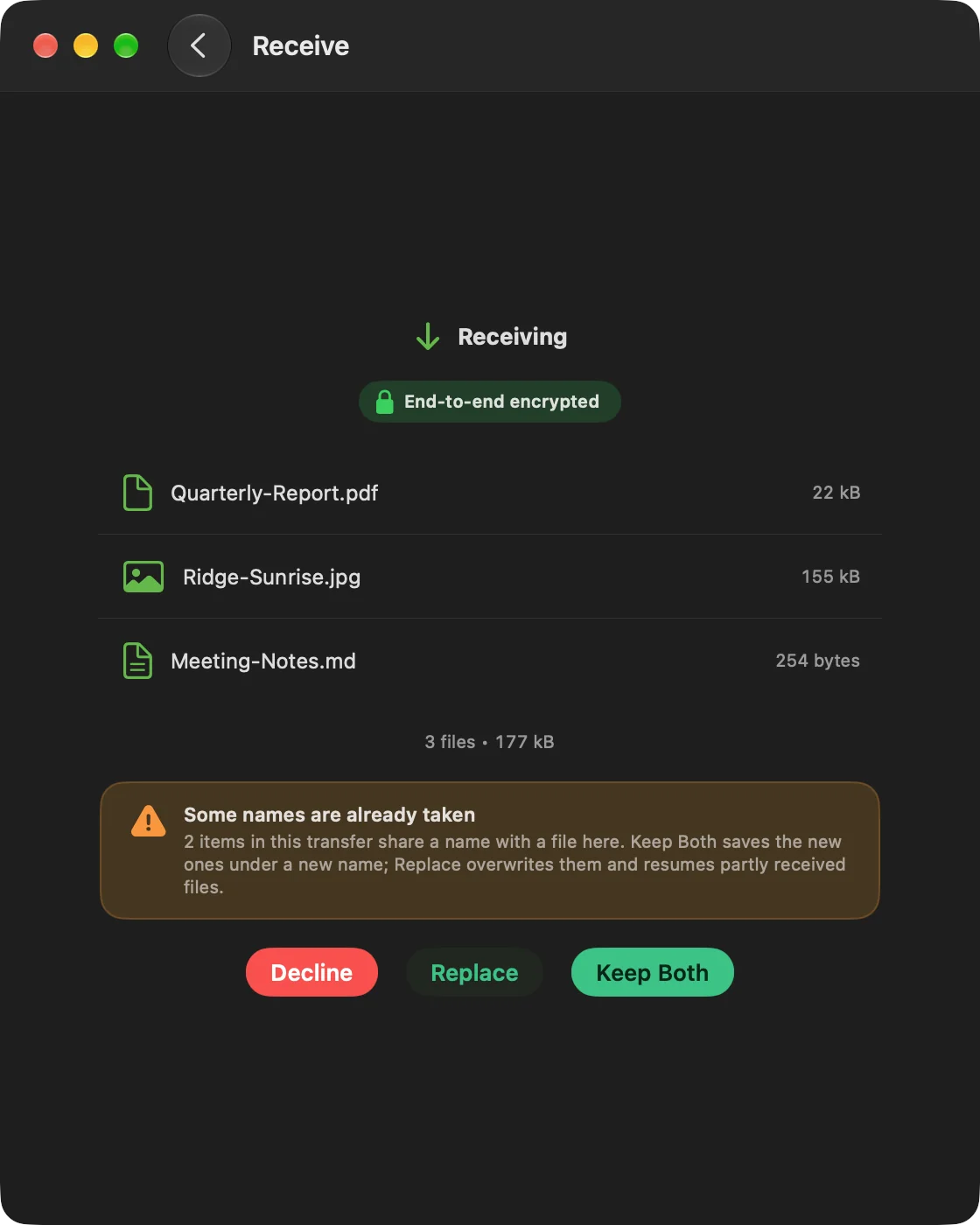
CrocApp never overwrites a file unless you say so. When a name is already taken, a banner reads Some names are already taken and Accept is replaced by two choices:
- Keep Both (the default) saves the new file as
name (1).ext, thenname (2).ext, and so on. - Replace overwrites the existing file. A partly received file resumes where it stopped.
A file that already exists with identical content is left alone under either choice. A file with an unsafe name blocks the buttons. A name is unsafe when it tries to escape the destination folder, contains a line break, or uses a text-direction control that can hide its real ending (for example a name that reads invoice.pdf but ends in .exe).
A folder sent as a zip arrives as one .zip name, so CrocApp cannot tell which of its files exist. The sheet then offers only Accept, which behaves as Keep Both: existing files stay and matching files in the archive are skipped. To get the sender's copies, move your old folder away first.
Auto-accept
Auto-accept is off by default, so you always see the file list first. Turning on Auto-Accept Transfers in Settings skips that preview. Because there is no sheet to ask, When a File Already Exists decides between Keep Both and Replace.
After the transfer
CrocApp shows Transfer complete, or a message if something went wrong. Open the folder with Show in Finder (Mac) or Open in Files (iOS). On iOS, Open in Files appears only when the destination is the default Documents folder. If you picked another folder, open it from the Files app.
A received text snippet shows as Received text with Copy Text.
The Mac File menu also has Show Receive Folder in Finder, and iPad has Show Receive Folder in Files. Both use ⇧⌘R.
A Shortcuts action can receive for you and hand back the files.