Your first transfer
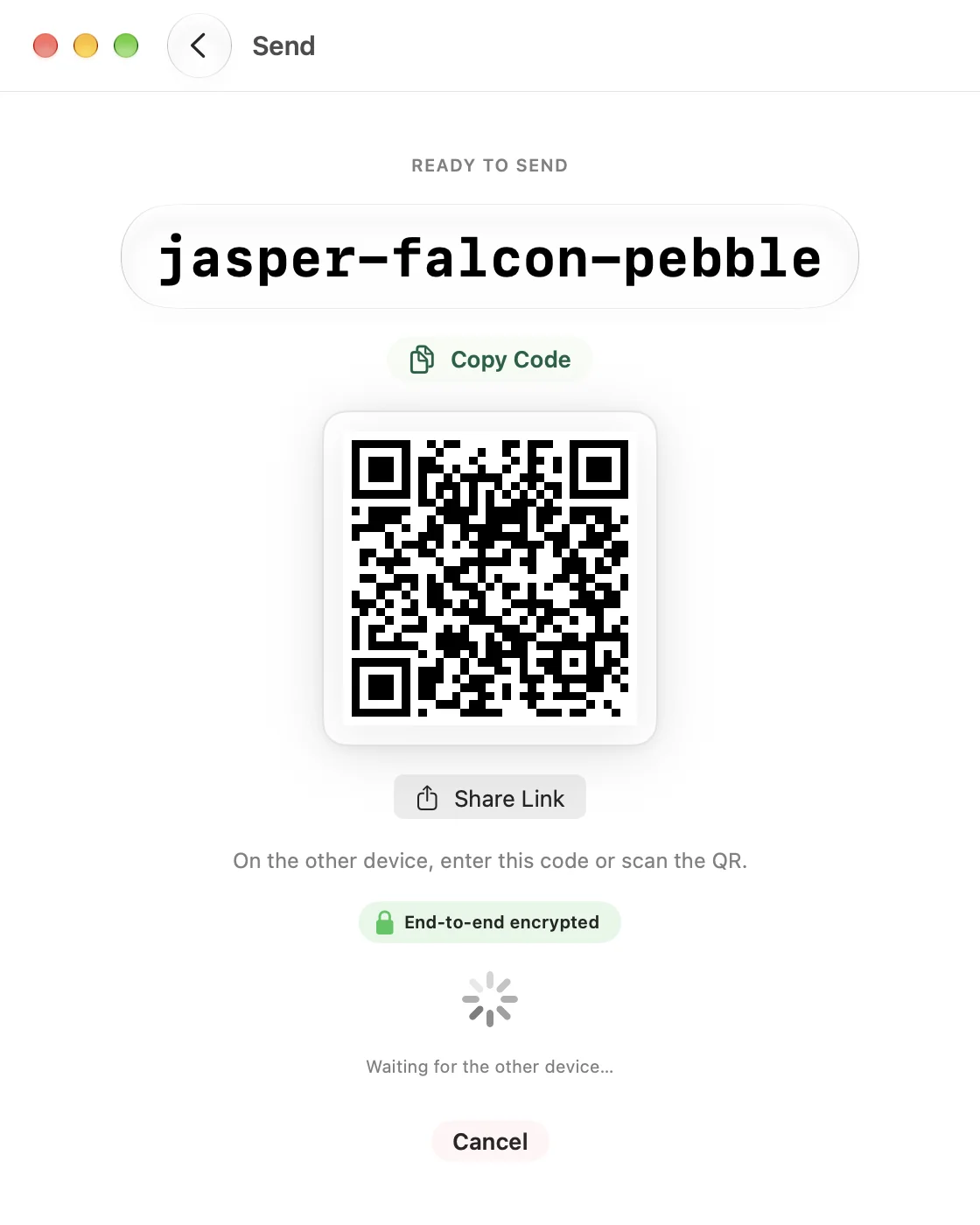
The home screen has two buttons, Send and Receive. On the first launch, CrocApp shows a short welcome screen first. Tap Get Started to continue. CrocApp may then ask for camera access (to scan QR codes) and local network access (for faster nearby transfers).
Send
- Tap or click Send.
- Pick Files or Text under What to Send. For files, use Add Files or Add Folder. On a Mac you can also drop files anywhere on the window.
- Tap Send.
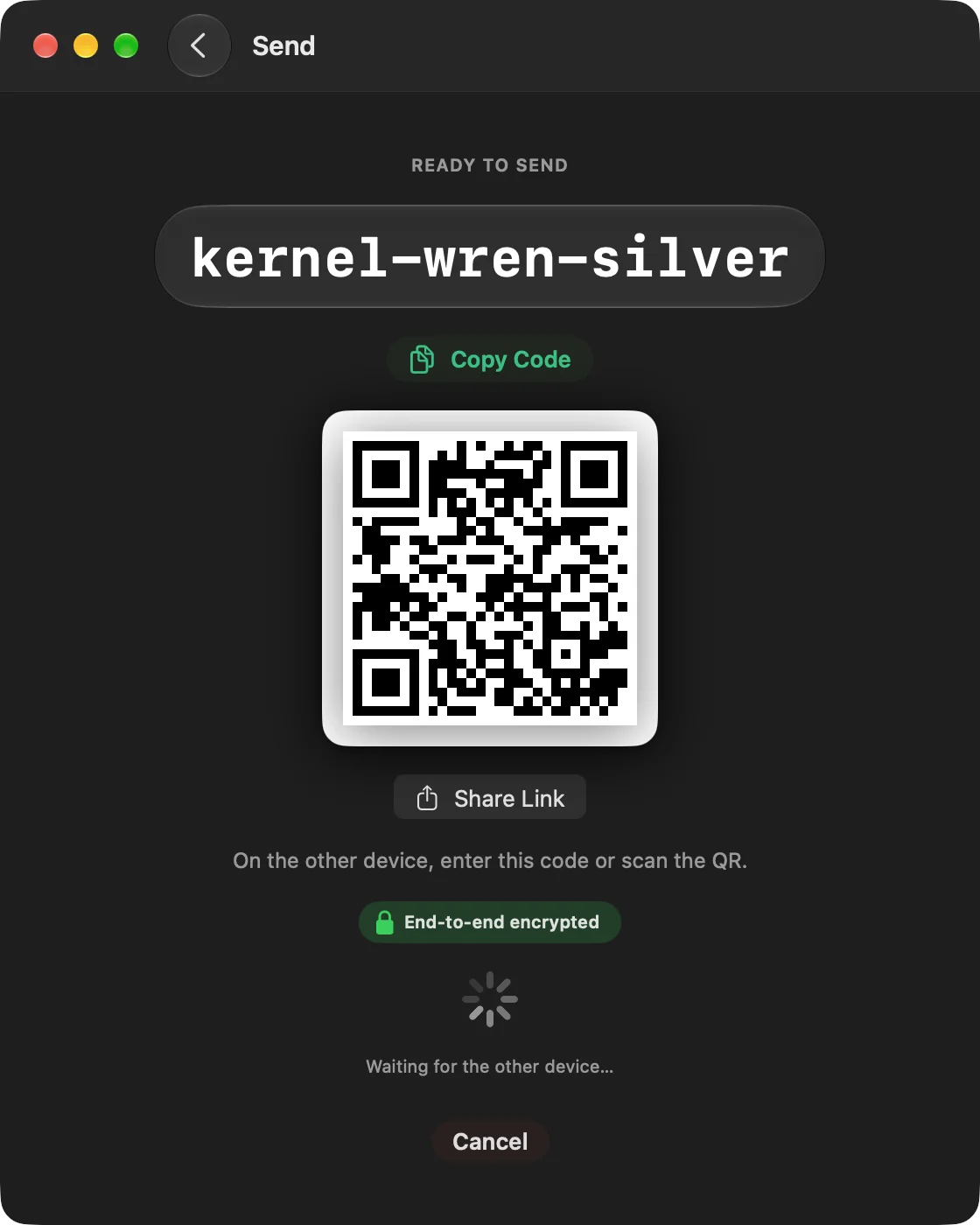
- Give the other person the code phrase on screen. They can type it, scan the QR code, or open the link from Share Link.
- When the other device accepts, the transfer runs. Transfer complete appears when it ends.
Receive
- Tap or click Receive.
- Enter the code phrase, paste it (a link works too), or on iOS tap Scan QR Code.
- Check the destination folder under the code field. Change it with Change… if needed.
- Tap Receive, then review the file list and tap Accept or Decline.
- When it ends, open the folder with Open in Files (iOS) or Show in Finder (Mac).
For more on each step, see Send and Receive. To see why the code phrase is safe to share and what the relay sees, see Security and privacy.